Integrations
Connect retestr.ai with your existing workflow.
CI/CD & API Access
Trigger test runs automatically from your deployment pipeline (GitHub Actions, GitLab CI, Jenkins) using Scoped API Keys.
Read the full API Access Guide to learn how to generate keys and integrate with your CI pipeline.
Notification Webhooks
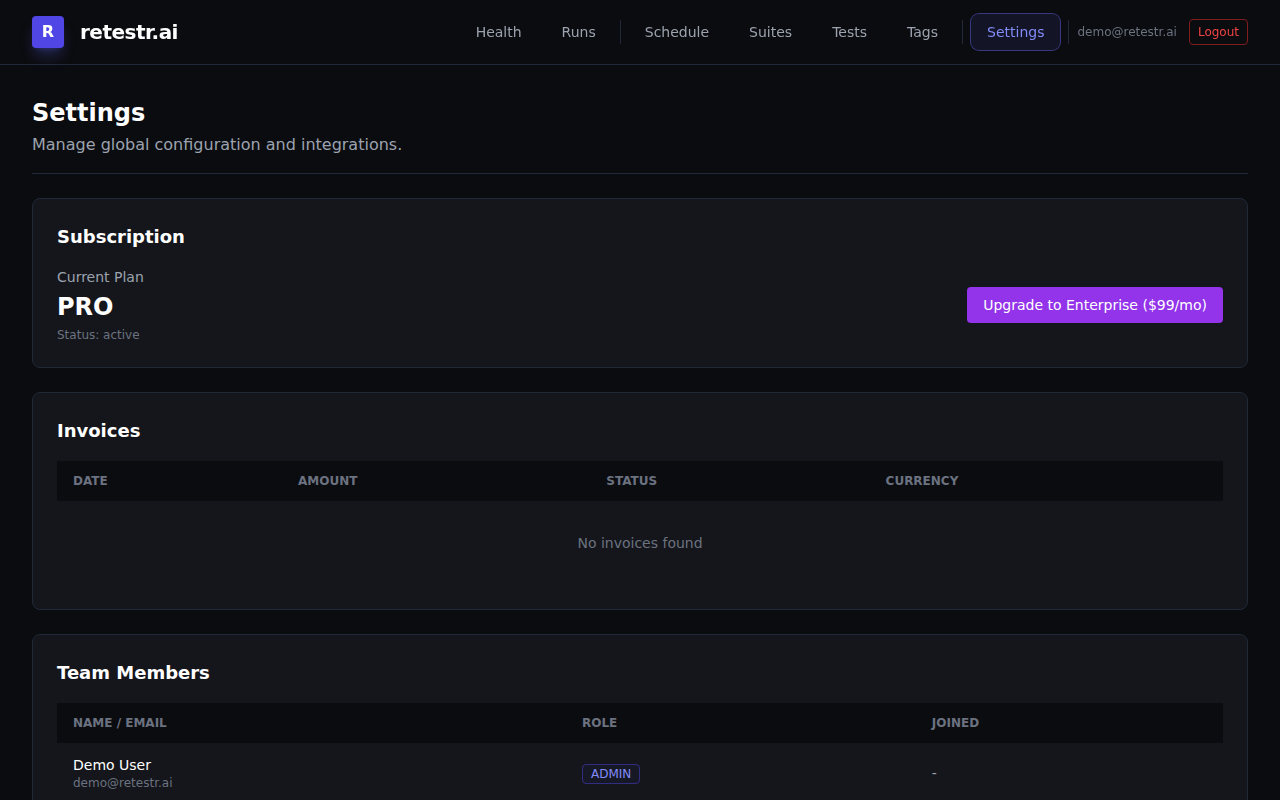
Notify your team instantly when runs complete or fail.
Configuration
- Navigate to Settings > Integrations.
- Click Add Webhook.
- Enter the URL (e.g., your Slack Incoming Webhook URL).
- Select the Events to subscribe to.
Supported Events
run:start: Triggered when a new test run begins.run:complete: Triggered when a run finishes (success).run:fail: Triggered when a run finishes with failures.
Payload Customization
You can use Handlebars templates to customize the JSON payload sent to your webhook.
- Slack Template: Format messages as Slack Blocks.
- Discord Template: Format messages for Discord embeds.
- Generic: Send raw JSON.
Issue Tracking
Link failures directly to your issue tracker (Jira, Linear, GitHub Issues).
Setup
- Navigate to Settings > Integrations.
- Configure a URL Template. Use
{{variables}}to pre-fill the issue title and description.
Example Templates:
- Jira:
https://your-domain.atlassian.net/secure/CreateIssueDetails!init.jspa?pid=10000&issuetype=10001&summary={{testName}}%20Failed&description=Run%20ID:%20{{runId}} - Linear:
https://linear.app/issue/new?title={{testName}}%20Failed&description=See%20failure:%20{{runUrl}} - GitHub:
https://github.com/org/repo/issues/new?title={{testName}}%20Failed&body=Run:%20{{runUrl}}
Usage
When viewing a failed test result, click the Create Issue button. A new browser tab will open with your issue tracker's "New Issue" page, pre-filled with details about the failure.
Public Status Badges
Embed dynamic status badges in your README.md or internal dashboards to show the current health of your visual tests.
Types of Badges
- Status Badge: Shows whether the latest run Passed (Green) or Failed (Red).
- Pass Rate Badge: Shows the percentage of tests that passed (e.g., "95%").
Usage
You can generate the badge URLs using your Project ID.
Status Badge:
https://retestr.ai/api/badges/status?projectId=YOUR_PROJECT_ID&branch=main
Pass Rate Badge:
https://retestr.ai/api/badges/pass-rate?projectId=YOUR_PROJECT_ID&branch=main
Markdown Example
[](https://retestr.ai/app/projects/abc-123)
Customization
You can customize the label and color (hex code) via query parameters:
label: Change the text on the left side (default: "Visual Tests").color: Override the status color (e.g.,%23ff0000).
...?projectId=...&label=UI+Tests&color=blue